Features
What SigTDD does, in the order you use it: bring a corridor in, coordinate it, read the diagram, keep the plans, share and export.
Import a corridor
Three formats are recognised automatically when you press Import:
- CSV — one row per intersection: sequence number, name, distance to the next intersection in metres, northbound and southbound design speeds in km/h, offset in seconds, up to six phase durations (A to F) and an optional direction code per phase. Column names are matched loosely, so a spreadsheet export usually works first time.
- SigTDD JSON — a single timing plan, or the Corridor JSON that holds every timing plan for the corridor in one file.
- Synchro UTDF (Pro) — the Universal Traffic Data Format text export from Synchro. Signalised nodes, their coordinates, cycle lengths, offsets and phase timings are read and converted to a corridor. How the import maps UTDF fields.
Six example corridors ship with the tool, so you can see a finished diagram before you enter a single number. New intersections can also be typed straight into the table.
Read the time-distance diagram
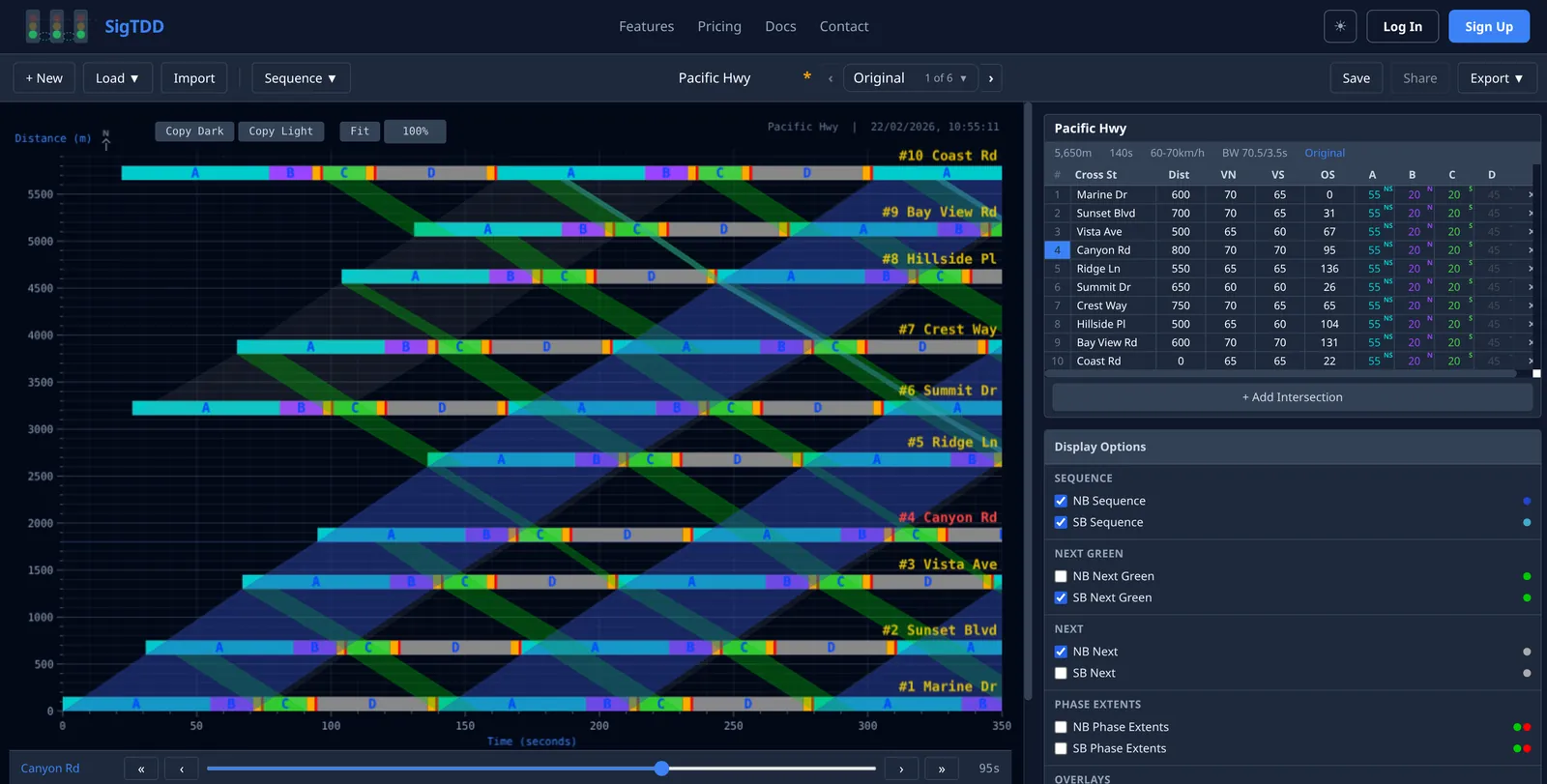
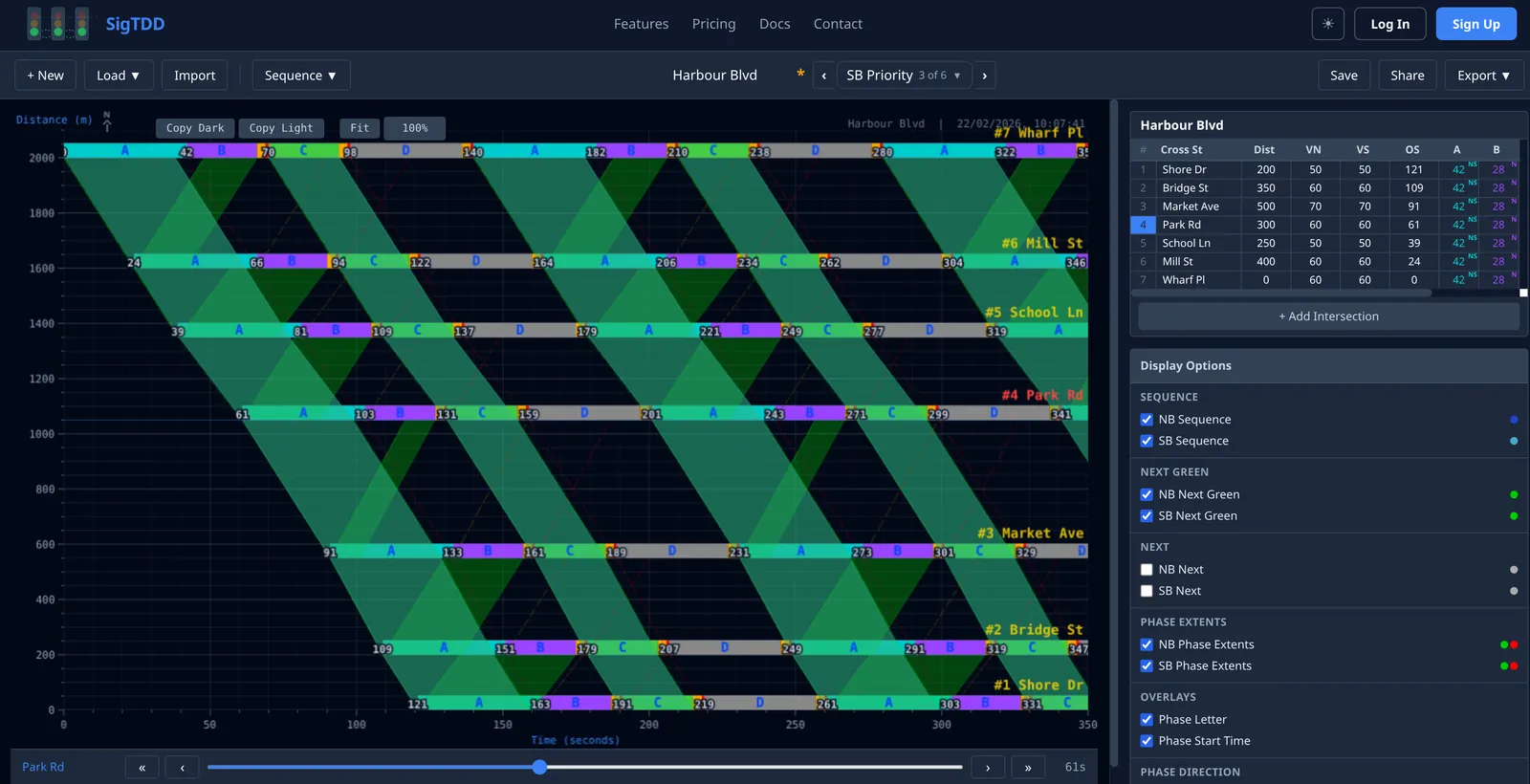
Distance runs up the page, time runs across it. Each intersection is a bar of phases in sequence, shifted by its offset; the diagram redraws as soon as any value changes. The display options decide which projections you see:
- NB / SB Sequence
- the progression band through every intersection at the design speed — the green wave itself
- NB / SB Next Green
- departures that arrive on green at the next intersection only, for adjacent-pair coordination
- NB / SB Next
- design-speed travel-path lines regardless of signal state
- NB / SB Phase Extents
- dashed projections of each phase start (green) and end (red)
- Phase Letter, Phase Start Time
- labels on the phase bars
Scroll to zoom, drag to pan, and use Fit to bring the whole corridor back into view. The corridor header shows length, cycle, speed range and the current bandwidth in each direction.
Set the offsets
Select an intersection and drag the offset slider under the diagram, or type the value in the table. Auto-sequence calculates every offset from spacing and design speed for northbound or southbound progression in one click; Smart mode (Pro) also weighs the opposing direction. Values are clamped to valid ranges as you type, and each phase can be assigned to northbound, southbound, both, or left out of the progression bands. The offset arithmetic behind the button.
Keep several timing plans per corridor
A corridor holds one set of geometry — names, distances, speeds — and up to 10 timing plans that each carry their own offsets, phase durations and phase directions. Model the AM peak, the PM peak and the off-peak plan side by side, duplicate a plan to try a variation, and switch between them from the plan selector in the toolbar.
Share and export
- Share link — a read-only view of a saved corridor that anyone can open in a browser without an account. Revoke it at any time.
- Copy Dark / Copy Light — the diagram to the clipboard for slides or a report, on a dark or a white background.
- CSV and JSON of the active plan, or Corridor JSON with every plan, for backup and for moving work between devices.
- PDF (Pro) — the diagram and the data table on one landscape page.
Work in progress is kept in the browser automatically; saving to an account keeps it across devices and is what makes a corridor shareable.
Free and Pro
| Limit or capability | Free | Pro |
|---|---|---|
| Saved corridors | 3 | 50 |
| Timing plans per corridor | 2 | 10 |
| Intersections per corridor | 6 | 12 |
| PDF export | No | Yes |
| Synchro UTDF import | No | Yes |
| Smart auto-sequence | No | Yes |
Pricing has the Pro price; the limits above are read from the same table the API enforces.
Where it comes from
SigTDD is the browser rebuild of a Windows desktop time-distance diagram program first written in 2002 for corridor signal work. The drawing conventions — distance up the page, phase bars per intersection, projection lines at design speed — are the ones traffic engineers have used on paper and in desktop tools for decades; what changes is that there is nothing to install and the result can be shared with a link.
Try it on your corridor
Open the tool with an example loaded, or create a free account to save your own.
No credit card required for the free tier.